Custom Logger - Simpler log managment
Introduction
The Unity engine provides a static class Debug that includes methods to facilitate error tracking and game analysis during development. As a project's complexity increases, so does the number of generated logs, which can make debugging more difficult. Often, we want to analyze a specific system without going through irrelevant messages from other parts of the game. Therefore, the ability to filter and organize logs becomes crucial to maintaining clarity and control over the debugging process.
In this article, we will tackle the following topics:
- How to create a custom
CustomLoggerclass - Why it's better to use Debug.LogFormat than Debug.Log
- How to manage logs using Scripting Define Symbols
- Why you should use the Conditional attribute
Creating a custom logging system
When creating a wrapper for Debug.Log, the simplest solution that may come to mind is adding prefixes to our messages for categorization.
We can create a static method that appends the game module's name to each message. For example, let's create a method for the Photo Mode system.
The method might look as follows:
1
2
3
4
public static void PhotoModeLog(string message, Object context = null)
{
  Debug.Log("[Photo Mode System]: " + message, context);
}
Our newly created method works exactly like Unity's built-in Debug.Log. It take a message parameter and an optional context(However, if we want our logs to be more useful, we should enforce providing a context for our logs). Unity provides two overloads for the Log method:
1
2
3
4
5
public static void Log(object message) => Debug.unityLogger.Log(LogType.Log, message);
public static void Log(object message, Object context)
{
  Debug.unityLogger.Log(LogType.Log, message, context);
}
What makes a good log?
Let's pause for a moment. What information do we want to send and receive from our logs? If the message simply states, “Operation failed,” it might as well not exist at all. Such a message does not convey the most crucial information, such as which operation failed, why it happened, where in the system it occurred, and on which object. A good log should indicate how to resolve the warning/error and where it originated from.
Finally, our method should look like this:
1
2
3
4
5
6
7
public static class CustomLogger
{
  public static void PhotoModeLog(string message, Object context)
  {
    Debug.Log("[Camera System]: " + message, context);
  }
}
And an example usage of the log:
1
CustomLogger.PhotoModeLog("Message", this.gameObject);
Voilà. Everything seems to work correctly, or is it?
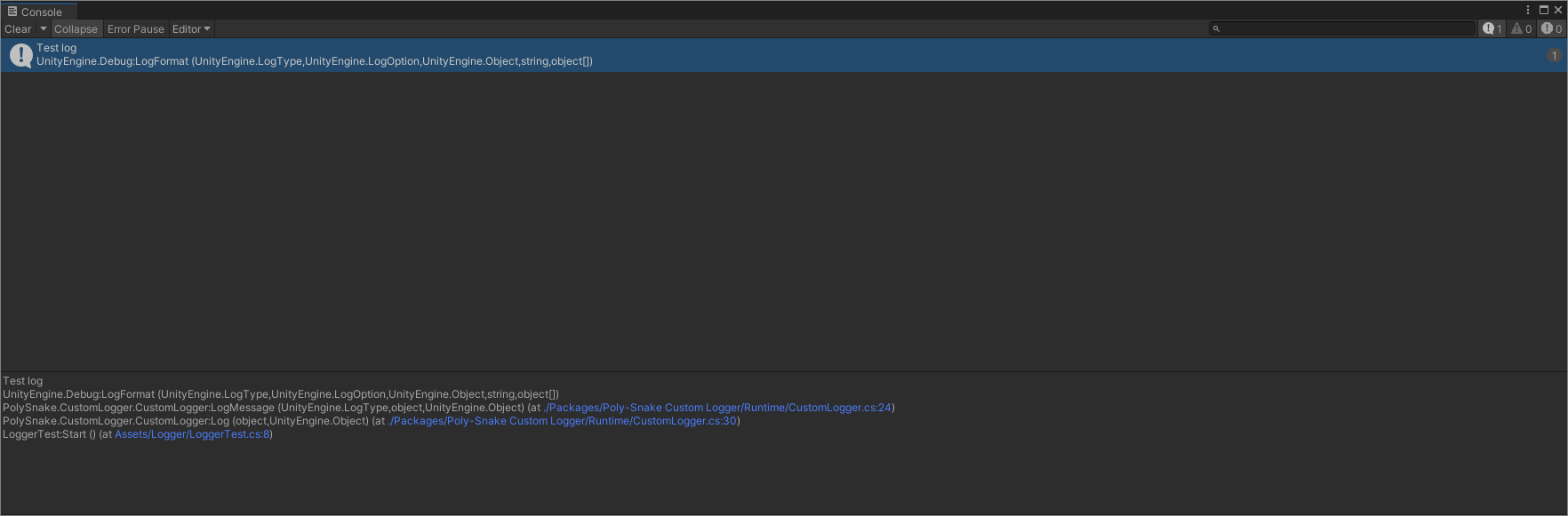
Usually, when an error appears in the console, we want to quickly navigate to the code editor to find the source of the issue. We double-click on the message and… well. The IDE opens, but instead of landing at the place where the log was triggered, we end up in our static CustomLogger class. Unity takes us to the PhotoModeLog method because that is where the logging was executed.
What next? - The navigation issue
One commonly proposed solution to this problem is to enclose the CustomLogger class in a .dll file. The idea is that if the logger class is locked inside a compiled library, Unity will not be able to reference it as the log's origin and will automatically direct us to the actual call site. This happens because Unity, when unable to reach the top of the stack trace, will use the last accessible location. While this solution works, it involves several extra steps for every modification:
- editing the source code of the library
- recompiling the
.dll - reimporting the
.dllinto the Unity project
A better solution is to use Debug.LogFormat and create own custom logs. Debug.LogFormat does not concatenate strings before execution—it passes them directly to Unity. The engine recognizes the location from which the log originated, even if it is wrapped inside a static method.
Let's create a class using this approach, including the three basic log types offered by Unity: Log, Warning, and Error.
1
2
3
4
5
6
7
8
9
10
11
12
13
14
15
16
17
18
19
20
21
22
23
24
25
26
27
public static class CustomLogger
{
  public static void Log(object message, Object context)
  {
    LogMessage(LogType.Log, message, context);
  }

  public static void LogWarning(object message, Object context)
  {
    LogMessage(LogType.Warning, message, context);
  }

  public static void LogError(object message, Object context)
  {
    LogMessage(LogType.Error, message, context);
  }

  private static string FormatMessage(object message)
  {
    return message?.ToString() ?? "NULL";
  }
  private static void LogMessage(LogType logType, object message, Object context)
  {
    if (!Debug.isDebugBuild) return;
    Debug.LogFormat(logType, LogOption.None, context, "{0}", FormatMessage(message));
  }
}
For better readability, I've introduced two private methods:
FormatMessage– Ensures that every message is properly converted to a string. If the provided object isnull, it returns"NULL"to avoid errors in the logs.LogMessage– The main method handling logging. It checks whether the game is running in Debug Build mode and then logs the message usingDebug.LogFormat, but only if the flag returnstrue.
Now, using CustomLogger.Log(), double-clicking in the console takes us directly to the relevant code location! 🎯
Conditional Compilation
I wouldn't be myself if we stopped here. We can further enhance our CustomLogger by introducing conditional compilation. Sometimes, we may want to disable logs in shipping builds to avoid unnecessary performance overhead. The Debug.isDebugBuild flag is one way to globally disable them, but let's do it better.
We can categorize our logs using Scripting Define Symbols and the [Conditional] attribute. This attribute allows a method to be compiled and executed only when a specific symbol (e.g. DEBUGGING_MODE) is defined.
1
2
3
4
5
6
7
private const string DEBUGGING_MODE = "DEBUGGING_MODE";

[Conditional(DEBUGGING_MODE)]
public static void Log(object message, Object context)
{
  LogMessage(LogType.Log, message, context);
}
To activate/deactivate logging:
- Go to
Edit>Project Settings>Player. - In the
Scripting Define Symbolssection, add or removeDEBUGGING_MODE. - Click
Apply, and Unity will recompile the code with the active symbols.
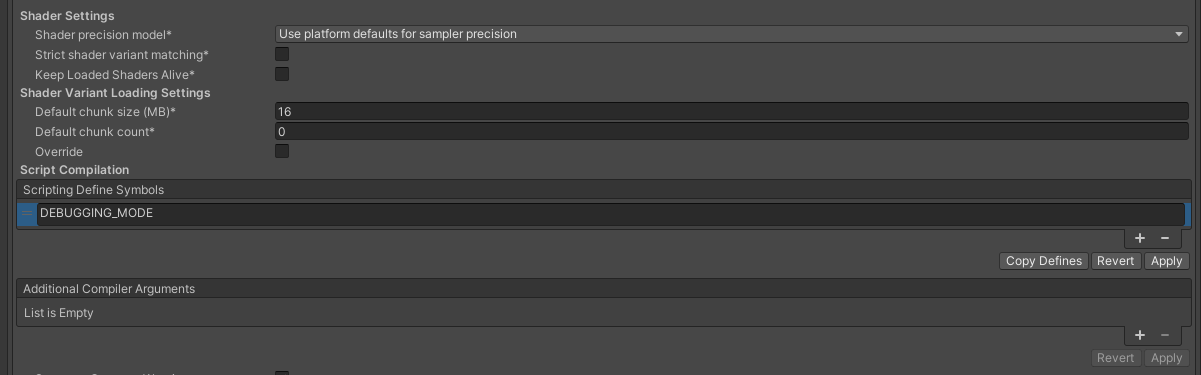
The way this works is analogous to using #if. If a key exists in Scripting Define Symbols, the code is included in the compilation.
So why don't we use #if DEBUGGING_MODE and #endif in the logger class instead? This approach would require wrapping every single CustomLogger call in such conditions. It is also more error-prone, as compilation errors would only occur if the symbol were disabled. The [Conditional] attribute eliminates this inconvenience.
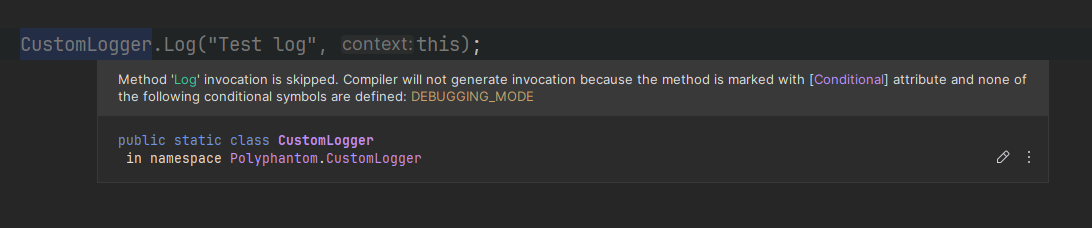 Example of a log call when the
 DEBUGGING_MODE symbol is disabled
Finally, our class looks like this:
1
2
3
4
5
6
7
8
9
10
11
12
13
14
15
16
17
18
19
20
21
22
23
24
25
26
27
28
29
30
31
32
33
34
35
36
37
38
39
40
using System.Diagnostics;
using UnityEngine;
using Object = UnityEngine.Object;

namespace Polyphantom.CustomLogger
{
  public static class CustomLogger
  {
    private const string DEBUGGING_MODE = "DEBUGGING_MODE";

    private static string FormatMessage(object message)
    {
      return message?.ToString() ?? "NULL";
    }

    private static void LogMessage(LogType logType, object message, Object context)
    {
      if (!UnityEngine.Debug.isDebugBuild) return;
      UnityEngine.Debug.LogFormat(logType, LogOption.None, context, "{0}", FormatMessage(message));
    }

    [Conditional(DEBUGGING_MODE)]
    public static void Log(object message, Object context = null)
    {
      LogMessage(LogType.Log, message, context);
    }

    [Conditional(DEBUGGING_MODE)]
    public static void LogWarning(object message, Object context = null)
    {
      LogMessage(LogType.Warning, message, context);
    }

    [Conditional(DEBUGGING_MODE)]
    public static void LogError(object message, Object context = null)
    {
      LogMessage(LogType.Error, message, context);
    }
  }
}
The presented CustomLogger is just a sample that can be adapted to your projects. You can create multiple logging categories that can be enabled or disabled using Scripting Define Symbols. Let's take a look at an example:
1
2
3
4
5
6
7
8
9
10
11
12
13
14
private const string AI_DEBUG = "AI_DEBUG";
private const string NETWORK_DEBUG = "NETWORK_DEBUG";

[Conditional(AI_DEBUG)]
public static void LogAI(object message, Object context)
{
  LogMessage(LogType.Log, "[AI]: " + message, context);
}

[Conditional(NETWORK_DEBUG)]
public static void LogNetwork(object message, Object context)
{
  LogMessage(LogType.Log, "[NETWORK]: " + message, context);
}
Now we can easily enable and disable specific logs without modifying the code using AI_DEBUG and NETWORK_DEBUG! 💡 Remember, logging to the console impacts game performance. Disabling unnecessary messages at the compilation stage can be incredibly helpful not only for log readability but also for overall game performance.
I encourage you to experiment by adding keyword coloring or clickable links in your logs. Below is an example of an editor log from a screenshot tool. The filename is highlighted in color, and the file path is a clickable link that opens the folder containing the screenshots. This log appears only in the editor.
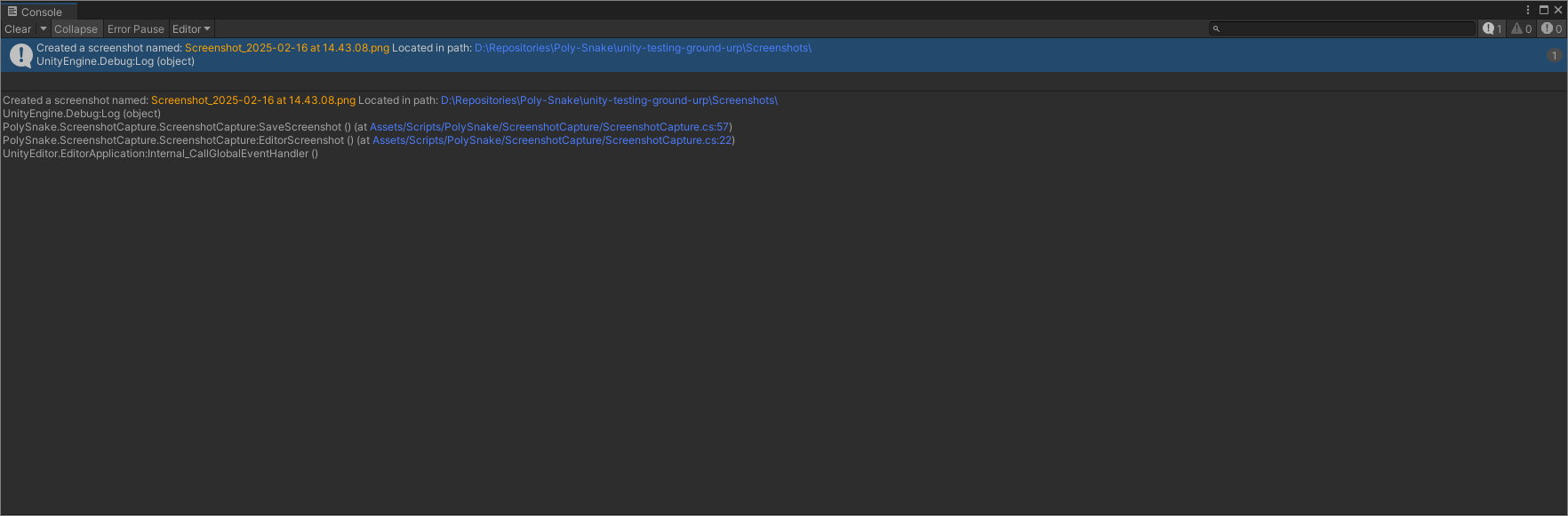 Log from a screenshot tool
That's all for today, take care and until next time! 🐍
References
Published by

Comments powered by Disqus.